MQTT History
On your display
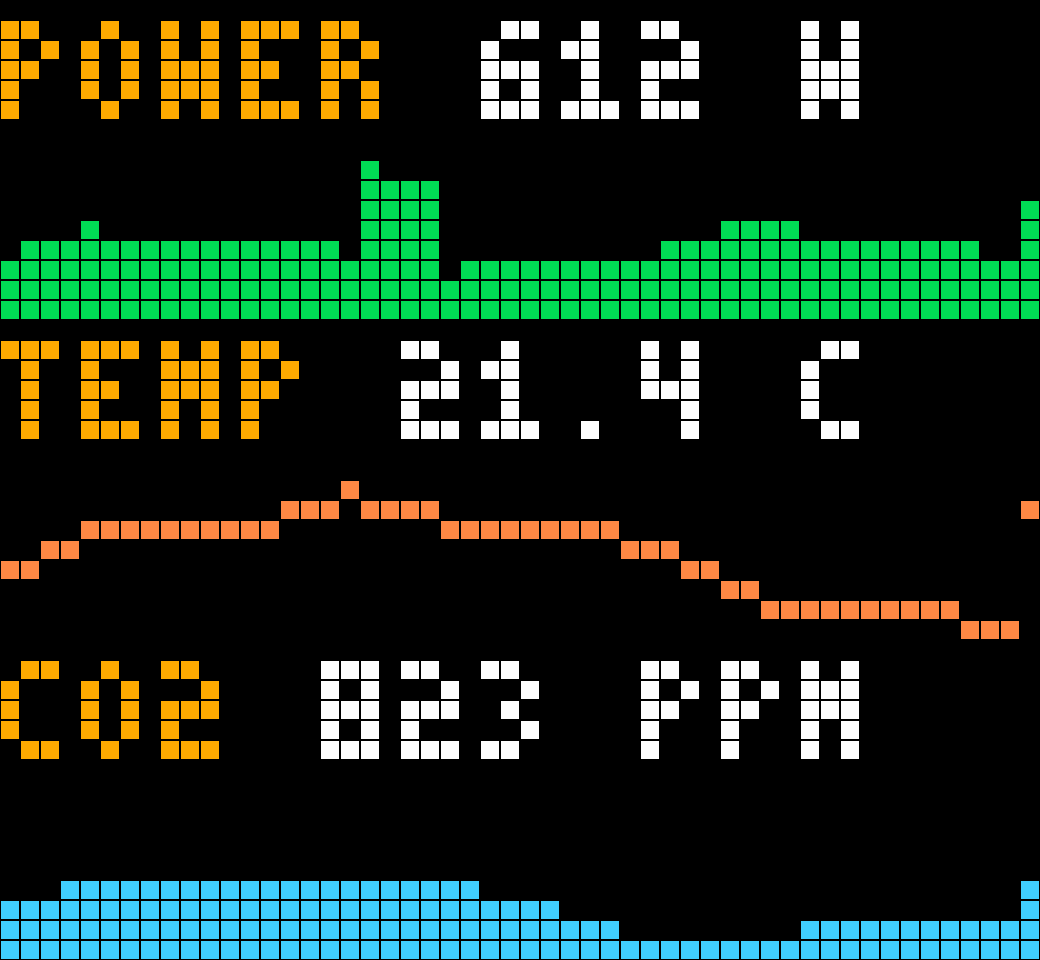
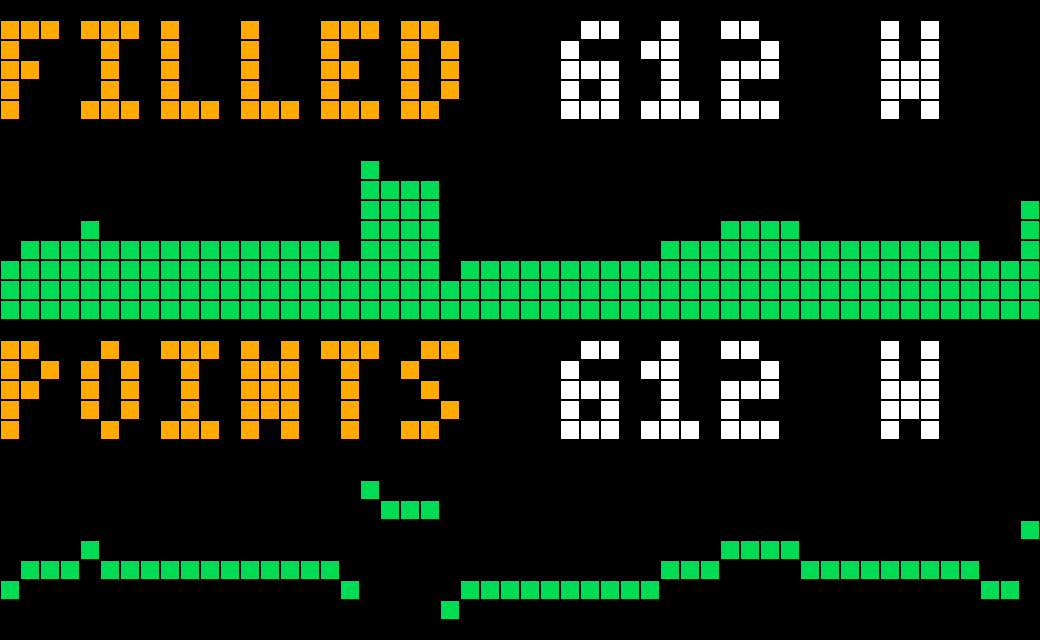
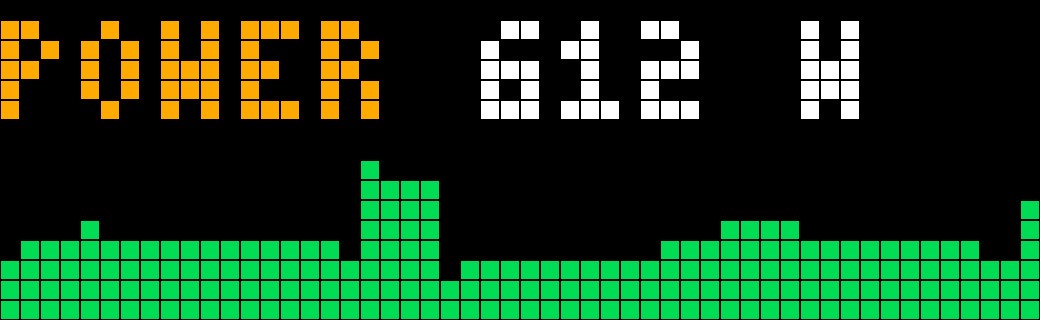
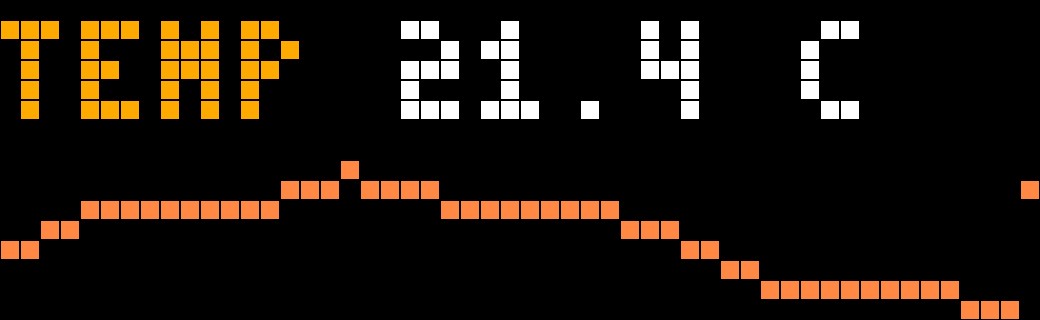
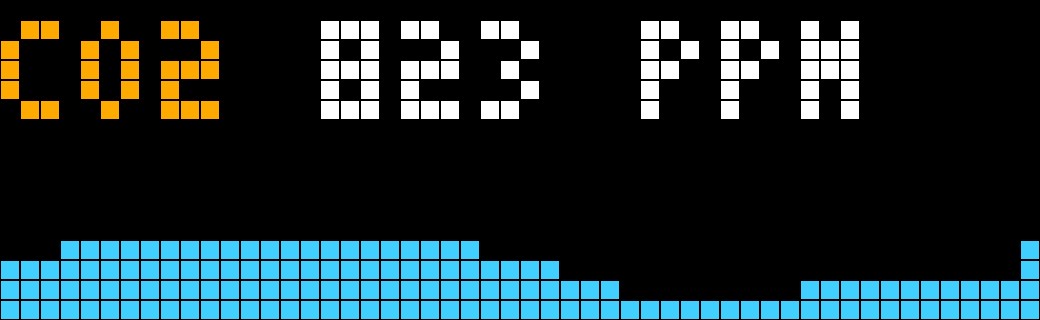
Display multiple MQTT sensor values with rolling history, filled bars or points and individual settings for each sensor.
- Topic
- Smarthome
- Includes
- Script
Runs on
- Does not run on 32×8 (TC001 & DIY) Made for 52×16 (TC002).
- Runs on 52×16 (TC002)
- Does not run on 32×8 with AWTRIX 3 (TC001 & DIY) Made for AWTRIX NG.
Choose your display in the next step.
Script description
MQTT History
Show multiple MQTT sensor readings and their rolling history in one AWTRIX NG app. Configure sensors through individual input fields, choose filled bars or points, and give each sensor its own title, value and chart colors.
Compatibility
For AWTRIX NG on the Ulanzi TC002, with a 52 × 16 display. This release does not target AWTRIX 3 or the 32 × 8 TC001. It uses the clock's existing MQTT connection and permissions; there are no separate broker credentials in the app.
Home Assistant is optional. Any publisher on the same broker can supply readings, including a smart meter reader, Node-RED or an ESP-based sensor. A Home Assistant automation is only needed for values you want HA to calculate or republish.
Setup with individual fields
- Connect AWTRIX NG to your MQTT broker.
- Install the script. When testing alongside another history edition, use a new install name and disable the previous app to avoid duplicate subscriptions and displays.
- Open the app's gear settings. Expand Sensor 01.
- Enable the sensor, set its exact MQTT topic, and choose its payload type. Set its title, unit and decimal places.
- For a JSON message, set JSON path. For an AWTRIX layout message, set Layout value region and optionally Append layout region.
- Choose the chart style, time per column, scaling and colors. Save and wait for a valid message.
- Enable and configure more groups, Sensor 02 through Sensor 12, as needed. Leave unused groups disabled.
The sensor groups are ordinary settings. There is no need to edit a JSON array or the Data tab for the first twelve sensors. Only Sensor 01 is enabled by default; all example topics must be replaced with your real topics.
Plain-number example
For a publisher sending 612 on sensors/power, enter:
| Field | Value |
|---|---|
| Enabled | On |
| Exact MQTT topic | sensors/power |
| Payload type | plain |
| Title | POWER |
| Unit | W |
| Decimal places | 0 |
| Chart style | filled |
| Seconds per column | 60 |
| Scale mode | zero |
Nested JSON example
For this message on sensors/meter:
{"ENERGY":{"Power":612,"Total":8792.71}}
Set Exact MQTT topic to sensors/meter, Payload type to json, and JSON path to ENERGY.Power. This format is illustrative: use the exact path in a real message from your publisher. A smart meter's schema depends on its firmware and configuration.
JSON paths are case-sensitive. Dot-separated keys and zero-based array indexes are supported, for example readings.0.value. Keys containing literal dots, full JSONPath expressions, XML and binary messages are not supported.
AWTRIX layout example
For a message such as:
{"layout":{"regions":[{"id":"value","text":"21.5 C"}]}}
Choose Payload type layout, Layout value region value, Unit C and Decimal places 1. Leave Append layout region empty unless the number is split across two text regions. If a price has price containing 1,93 and decimal containing 9, selecting these two regions combines the number to 1.939.
Sensor fields
The same fields appear in all twelve sensor groups. Each group has its own settings; changing one sensor does not change the others.
| Field | Meaning |
|---|---|
| Enabled | Turn this sensor on or off. |
| Exact MQTT topic | Full topic, with no + or #. Optional {prefix} substitution is supported. |
| Payload type | auto, plain, json or layout. Auto tries a plain number, then a layout or the configured JSON path. |
| JSON path | Path to the number; default value. Leave empty for a scalar JSON value. Used by json/auto, not by layout. |
| Layout value region | Region ID containing numeric text; used by layout/auto. |
| Append layout region | Optional second region appended before numeric parsing. |
| Title | Sensor heading. |
| Unit | Unit shown after the value; not inferred from the payload. |
| Decimal places | 0 to 3. |
| Title color | Color of the heading. |
| Value color | Color of the current reading and unit. |
| Chart color | Color of the positive history trace/bars. |
| Chart style | filled or points. |
| Seconds per column | Time window in seconds, 60 to 86400. |
| Window aggregation | mean, last, min or max. |
| Scale mode | zero, auto or fixed. |
| Fixed lower bound | Lower chart bound in fixed mode only. |
| Fixed upper bound | Upper chart bound in fixed mode only; must exceed the lower bound. |
| Multiply by | Conversion factor; 0.001 converts W to kW. |
| Add offset | Offset applied after multiplication. |
| Stale timeout | Seconds without a valid reading before the page turns gray. Each form group has its own saved timeout; set it explicitly. |
| Rejected numeric values | Optional semicolon-separated exclusions, for example 99. Leave empty unless your publisher uses that value as a placeholder. |
General settings
- Optional topic prefix: replaces
{prefix}in topics. Leave empty when entering complete topics. - Seconds per sensor: page duration, default seven seconds. All enabled channels keep collecting readings while hidden. The knob switches sensor pages.
- Default stale timeout: fallback for extra JSON channels without a stale setting. The twelve form groups each have their own Stale timeout field.
- Negative value color: color used for valid negative readings.
- Extra sensors (JSON array): optional expansion beyond the twelve form groups, up to 32 active channels in total. Leave
[]for normal field-based use. This optional field is single-line in AWTRIX; it is not the recommended editing method for ordinary setup.
History and time windows
The top eight rows show the title and latest valid reading. The bottom eight rows show up to 52 columns, newest at the right. Filled mode draws bars from the visible reference baseline. Points mode draws one pixel per valid column without connecting segments. Missing windows have dim markers along the bottom.
Bucket means a time window collecting readings: Seconds per column is its duration. At 60 seconds the full width covers about 52 minutes; at 1800 seconds about 26 hours; at 7200 seconds about 104 hours. Windows begin with the first valid reading rather than on wall-clock boundaries. The newest window is still filling.
Aggregation can use the arithmetic mean, last, minimum or maximum of the received readings in a window. Mean is not time weighted. Empty windows stay gaps, including while the app is hidden. Repeated messages count as repeated samples.
Scaling and conversion
zeroautomatically includes zero and the retained data range.autofits the retained data range to show small changes. When zero is outside that range, filled bars use the nearest visible boundary as their reference.fixeduses your lower and upper bounds. Bounds only clip the drawing; they do not reject incoming values. The heading still shows the actual value.
Conversion is extracted value × Multiply by + Add offset. It applies before history, display and numeric exclusions. The selected unit must match the result. Non-finite results and values outside ±10^12 are rejected.
The app does not integrate power into energy, calculate tariffs or compute counter differences. A lifetime counter is shown as received. For hourly energy use, publish a value already representing that interval.
Missing and invalid readings
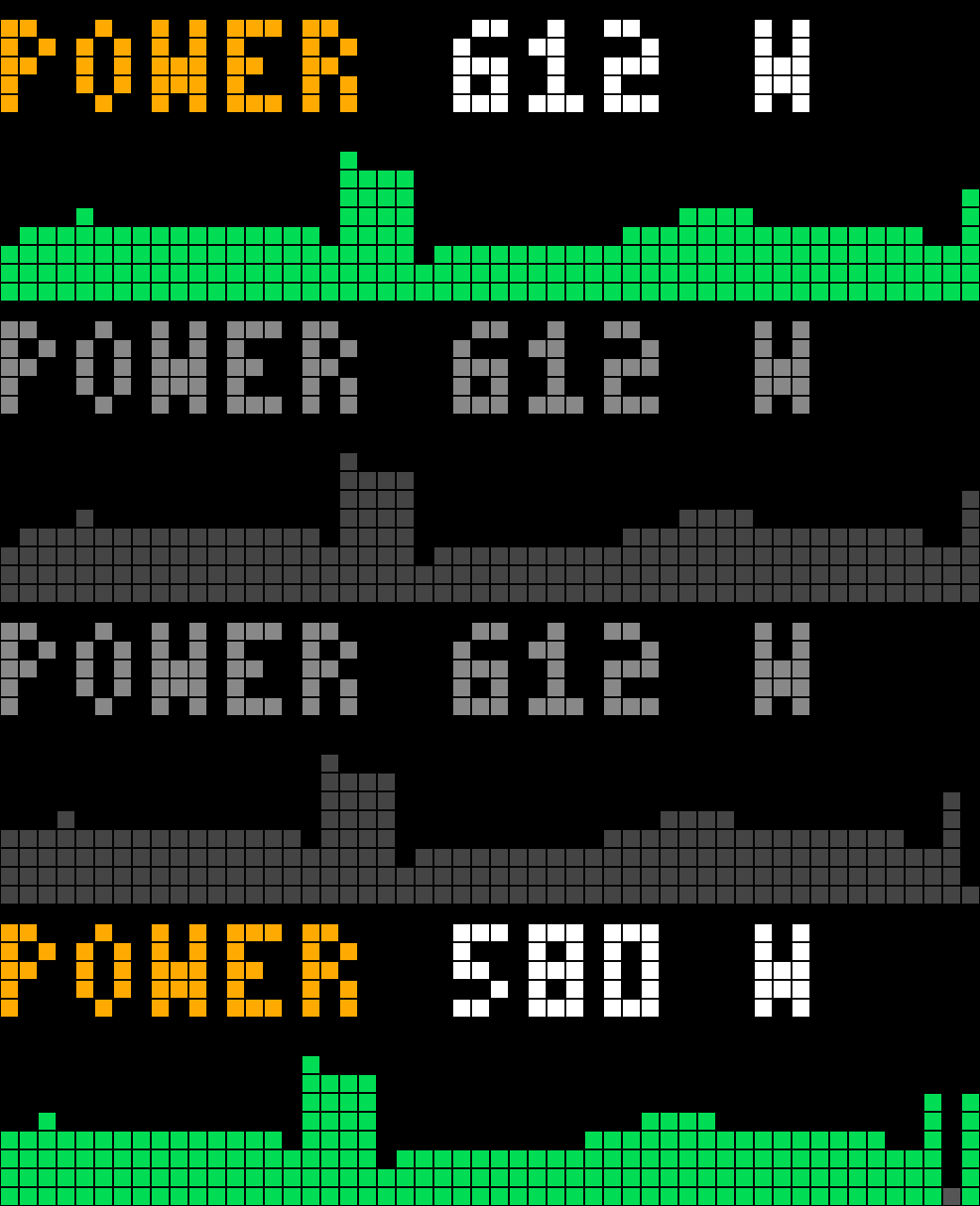
Unknown/unavailable text, missing JSON fields and null values do not become zero. Invalid or excluded readings preserve the last valid value, valid-reading timestamp and history statistics. The sensor turns gray until a valid new message arrives. A window without valid samples remains a gap.
Numeric placeholders need a per-sensor rule. If your publisher uses 99 for missing prices, enter 99 in that sensor's Rejected numeric values field. This is not a standard MQTT error code. Valid zero-power values and valid readings of 99 on other sensors remain accepted. Prefer fixing the publisher to send a missing/non-numeric state instead of an invented value.
Use semicolons between exclusions. Decimal commas are accepted within an entry: 0;0,99;99 is an example of three excluded values, not a default recommendation. Exclusions use display units after conversion and a tolerance of 0.00001. No universal fuel-price range or global blacklist is imposed.
Set Stale timeout longer than the normal publishing interval. A publisher that only sends on change can become stale even if the unchanged reading is still correct. Retained messages are timestamped when received; the script API does not expose their original measurement time or retained flag.
MQTT subscriptions and limits
The app subscribes to ROOT/# once per first topic level and routes only configured exact topics to channels. Up to eight distinct roots are supported. The broker must permit these wildcard subscriptions. Unrelated messages under a subscribed root still reach the clock but are ignored by the app. Leading-slash topics and $ system roots are unsupported.
Storage and verification
Configuration survives restarts. Chart history lives in RAM and resets when the app/device restarts or source/settings are saved. No old broker or Home Assistant history is downloaded. Invalid configuration produces a setup page and log message; valid channels can continue.
When moving from a compact edition, install under a new name and transfer the sensor values into the corresponding form fields. There is no automatic import of the compact sensor array. Disable the previous history app during testing.
Tested successfully on a Ulanzi TC002 running AWTRIX NG. Preview GIFs use illustrative data rather than hardware captures.
Sign in to view and copy the code of this script.
Discussion 0
Ask a question, suggest a change or share how you use it.
No comments yet. Start the conversation.
Have an idea?
Sign in to ask questions and join the conversation.